
Table of contents
- Why does Outlook send winmail.dat files that recipients cannot open?
- How to open winmail.dat files on Windows, Mac, iPhone, and Android
- How to stop Outlook from automatically creating winmail.dat attachments
- How to disable winmail.dat across all Outlook clients in your organization
- Frequently Asked Questions
You’ve received an email attachment, but instead of the document you expected, there’s an unreadable winmail.dat file your email client won’t open. What is winmail.dat? It’s a file generated by Microsoft Outlook that contains formatting information and attachments in a proprietary format. When Outlook sends emails to non-Outlook users, this file appears instead of the intended attachment – making it unreadable for recipients using Gmail, Apple Mail, or other email clients.
Outlook wraps attachments in a Microsoft-specific format called TNEF, which can only be read by other Outlook users. Everyone else just sees winmail.dat.
The frustrating part is that the sender has no idea they are sending broken attachments. From their perspective, everything looks normal. Meanwhile, you are stuck either asking them to resend the file or finding a third-party tool to extract what should have been a simple PDF or spreadsheet.
This problem is entirely preventable, but most organizations fail to configure Outlook correctly because they are unaware of the issue until clients or vendors begin complaining about inaccessible files.
In this guide, we cover:
- Why Outlook creates winmail.dat files instead of sending normal attachments
- Methods to open winmail.dat on any device without Outlook installed
- Settings that prevent Outlook from generating winmail.dat files
- How to disable winmail.dat across every Outlook client in your environment
Why does Outlook send winmail.dat files that recipients cannot open?
Outlook sends winmail.dat files because it uses Transport Neutral Encapsulation Format (TNEF).
TNEF preserves rich text formatting, calendar invitations, voting buttons, and other Microsoft-specific features that standard email protocols cannot handle. When you send an email from Outlook with Rich Text Format enabled, the application wraps your message and attachments in TNEF encoding.
Recipients using Outlook can decode this wrapper automatically and see everything as intended. Recipients using Gmail, Apple Mail, Thunderbird, or any non-Microsoft email client receive winmail.dat instead—a file their software cannot interpret.
- The issue stems from a fundamental incompatibility between Microsoft’s proprietary formatting and universal email standards like MIME. Standard email protocols support HTML and plain text formatting without requiring special encapsulation. Outlook’s Rich Text Format goes beyond these standards, adding features that require TNEF to transmit. Your email client has no idea what to do with TNEF data, so it saves the encoded blob as winmail.dat and displays it as an attachment.
- What makes this problem persistent is that Outlook can switch to Rich Text Format based on how recipients are stored in your contacts. You’ll see this most often when sending to contacts where Rich Text was previously saved as the preferred format, or when replying to messages that were originally sent in Rich Text. Even if you manually compose emails in HTML or plain text, Outlook can revert to Rich Text Format based on recipient settings stored in your contact list. You can send dozens of emails without issue, then suddenly generate winmail.dat files for specific recipients without changing anything in your workflow.
- The encoding happens at send time, so by the time you realize there is a problem, the email has already been delivered with broken attachments. Recipients see winmail.dat. You see nothing wrong in your Sent folder. The disconnect creates confusion because troubleshooting requires understanding that the problem is not the attachment itself—it is how Outlook chose to encode the entire message.
How to open winmail.dat files on Windows, Mac, iPhone, and Android
Opening winmail.dat files is straightforward once you have the right decoder. Here are the most reliable methods for every platform:
How to open winmail.dat files on Windows
Both applications are free and work identically—download, install, then double-click any winmail.dat file to see the original attachments. Winmail Opener displays everything in a preview window where you can save files individually or extract all at once. TNEF’s Enough skips the preview and dumps extracted files directly into a folder. Either tool solves the problem in under thirty seconds, and neither requires technical knowledge to operate.

How to open winmail.dat files on Mac
Letter Opener integrates with Apple Mail and intercepts winmail.dat attachments before you even see them, converting TNEF-encoded files into standard attachments without any action on your part. Install it once and forget that winmail.dat exists. If you prefer manual control, TNEF’s Enough for Mac works like its Windows counterpart—drag the file in, get your attachments back.
How to open winmail.dat files on iPhone and Android
When a winmail.dat attachment arrives, tap it, choose “Open in,” then select the Winmail.dat Opener app. The decoder extracts all attachments and displays them in a list. Tap any file to open it in the appropriate app, or save everything to your device. The mobile version works identically on iOS and Android, and the extraction process completes in seconds.
How to open winmail.dat files without installing software
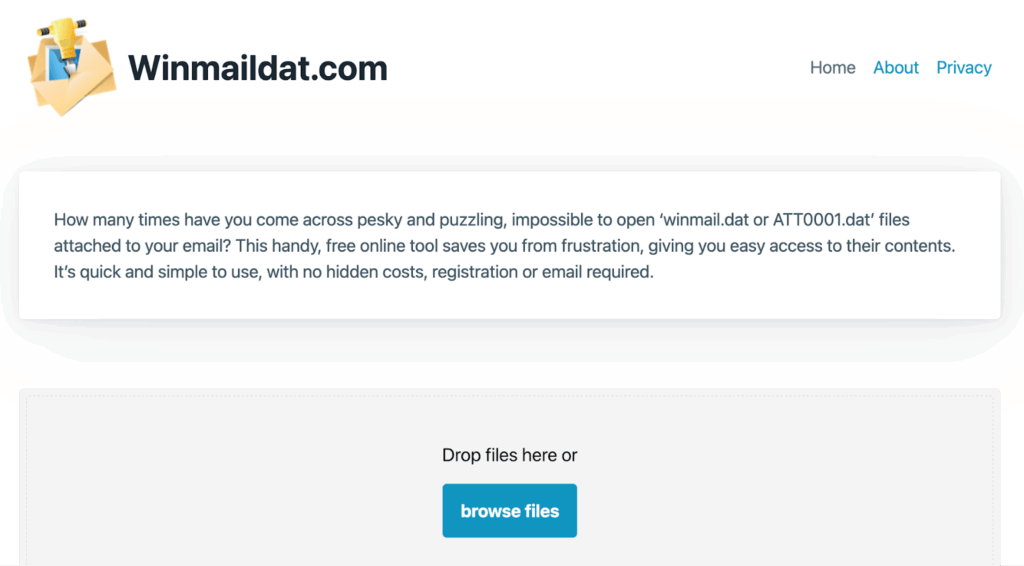
winmaildat.com decodes files in your browser and lets you download the extracted attachments without installing anything. This method works on any device but requires uploading files to an external server, which creates privacy risks for sensitive documents. Use web decoders only when you control the data or when the attachments contain nothing confidential.
How to stop Outlook from automatically creating winmail.dat attachments
Preventing winmail.dat files requires changing Outlook’s default message format from Rich Text to HTML or plain text.
Outlook creates winmail.dat files only when sending emails in Rich Text Format, which triggers TNEF encoding. The challenge is that Outlook stores format preferences in multiple locations—global settings, individual contacts, and per-message overrides. Most people change the global setting and assume the problem is solved, but Outlook continues generating winmail.dat for specific contacts where Rich Text preferences are saved at the contact level.
Here are four approaches you can take to get around it:
- Change Outlook’s default email format to HTML in global settings.
Open Outlook, go to File > Options > Mail, then find the “Compose messages” section. Change “Compose messages in this format” from Rich Text to HTML. This applies to all new emails you compose going forward, but it does not override format preferences saved in individual contacts or affect replies to existing Rich Text messages. - Remove Rich Text formatting from saved contacts in your address book.
Outlook stores format preferences for individual contacts that override global settings. Open a contact, right-click their email address, and select “Outlook Properties.” In the dialog that opens, check the “Internet format” dropdown. If it shows “Send using Outlook Rich Text format,” change it to “Send Plain Text only” or “Let Outlook decide.” You need to update this for every contact where you have previously sent Rich Text emails, or Outlook will continue generating winmail.dat files for those specific recipients, regardless of your global settings. - Disable Rich Text Format for internet recipients via registry edit or Group Policy.
For permanent elimination across your organization, set the registry key HKEY_CURRENT_USER\Software\Microsoft\Office\16.0\Outlook\Preferences and create a DWORD value named DisableTNEF with a value of 1. This forces Outlook to convert all Rich Text messages to HTML before sending to Internet recipients, regardless of other settings. Group Policy accomplishes the same thing at the domain level, preventing users from accidentally reverting to Rich Text Format. - Configure Exchange Server to strip TNEF encoding from outbound messages.
If you manage an Exchange environment, configure the Remote Domain settings to disable TNEF for all external recipients. This server-side policy overrides individual Outlook settings, ensuring that even if users compose messages in Rich Text Format, Exchange converts them to standard MIME before delivery. This prevents winmail.dat files from reaching external contacts even when users ignore client-side configuration. - Verify format settings before sending high-priority emails.
Even with global settings configured correctly, Outlook can revert to Rich Text when replying to messages or when specific Outlook features activate. Before sending emails, check the Format Text ribbon—if it shows “Rich Text,” manually switch to HTML. This extra verification step catches edge cases where Outlook’s automatic format detection overrides your preferences.
How to disable winmail.dat across all Outlook clients in your organization
Eliminating winmail.dat across an entire organization requires centralized policies that override individual user settings. Relying on end users to configure Outlook correctly does not work—someone will inevitably send emails in Rich Text Format, generating winmail.dat files for external recipients and creating support tickets when clients cannot open attachments. MSPs managing multiple client environments need deployment strategies that prevent TNEF encoding at the server level, ensuring consistent email formatting regardless of how users configure their local Outlook installations.
- Deploy Group Policy Objects that disable Rich Text Format for all internet recipients. Create a GPO that sets the registry value HKEY_CURRENT_USER\Software\Microsoft\Office\16.0\Outlook\Preferences\DisableTNEF to 1 across all domain-joined machines. This policy forces Outlook to convert Rich Text messages to HTML before sending to external addresses, preventing TNEF encoding without requiring users to change settings manually. The policy applies at login and survives Outlook updates, eliminating winmail.dat files permanently for all managed endpoints.
- Configure Exchange Server or Microsoft 365 remote domain settings to strip TNEF from outbound mail. In Exchange Admin Center, navigate to Mail Flow > Remote Domains, select the default domain (asterisk wildcard), and set “Use Rich Text format” to “Never” under message format settings. This server-side configuration converts all outbound Rich Text messages to MIME-encoded HTML before delivery, catching messages even when users bypass client-side policies. The setting applies organization-wide and requires no endpoint configuration.
- Use PowerShell scripts to bulk-update contact format preferences in shared mailboxes and distribution lists. Individual user address books may contain contacts with saved Rich Text preferences that override global policies. Deploy a PowerShell script that enumerates all contacts across user mailboxes and resets the InternetEncoding property to BestBodyFormat or HtmlOnly. This removes per-contact overrides that cause intermittent winmail.dat generation for specific recipients even when global policies are correctly configured.
- Monitor outbound mail logs for TNEF-encoded messages to verify policy effectiveness. After deploying organization-wide policies, use Exchange message tracking or Microsoft 365 security logs to search for outbound messages with Content-Type: application/ms-tnef headers. These logs identify policy gaps—users sending Rich Text despite configuration, third-party email clients generating TNEF, or legacy systems bypassing Exchange transport rules. Regular log reviews catch edge cases before external recipients complain about winmail.dat attachments.
- Document winmail.dat prevention in client onboarding and endpoint deployment checklists. Include TNEF disablement in your standard MSP deployment templates so every new client environment starts with correct configurations. Add verification steps to onboarding checklists that confirm Group Policy application, Exchange remote domain settings, and test message delivery to non-Outlook recipients. Preventive configuration during deployment eliminates future support requests and prevents reputation damage from clients receiving broken attachments.
How Syncro eliminates winmail.dat errors across managed client environments
Managing Outlook configurations manually across dozens or hundreds of client endpoints creates gaps where winmail.dat files slip through.
Syncro’s RMM platform lets you deploy Group Policy Objects, push registry changes, and verify Exchange settings from a single dashboard without touching individual workstations.
Deploy TNEF-blocking policies to entire client organizations in minutes, monitor compliance across all managed endpoints, and catch configuration drift before users generate broken attachments. When email configuration issues appear in support tickets, Syncro’s integrated ticketing system connects the problem directly to the affected endpoint, letting your techs remediate without switching between platforms.
Stop managing Outlook configurations manually.
Book a demo and see how Syncro eliminates winmail.dat errors across every client environment you manage.
Frequently Asked Questions
Yes, you can delete winmail.dat files. However, deleting them means you’ll lose access to the original attachments the sender intended to share. The winmail.dat file contains the actual documents, images, or files wrapped in Microsoft’s TNEF encoding. Instead of deleting, use a decoder tool to extract the real attachments first, then delete the winmail.dat file afterward.
In most cases, no. Winmail.dat files are not viruses and pose no inherent security risk. They’re simply Microsoft Outlook’s way of packaging email formatting and attachments. The file itself is harmless. However, like any email attachment, you should verify the sender’s identity before opening winmail.dat files from unknown sources. Malicious actors could theoretically embed malware within the encoded attachments just as they could with any file type.
You receive winmail.dat files from senders who use Microsoft Outlook with Rich Text Format enabled. Not all Outlook users generate these files—only those whose Outlook is configured to send emails in Rich Text Format rather than HTML or plain text. The sender likely has you saved as a contact with Rich Text formatting enabled, or their organization hasn’t disabled TNEF encoding for external recipients.
Winmail.dat files contain the original email attachments plus Microsoft Outlook formatting data—rich text styling, calendar invitations, voting buttons, custom forms, and message metadata. When you extract a winmail.dat file using a decoder, you’ll retrieve the actual PDF, Word document, image, or other files the sender attached, minus the Microsoft-specific formatting that caused the problem in the first place.
Yes. Mac users receive winmail.dat files when the sender uses Outlook with Rich Text Format enabled, regardless of whether the recipient uses Apple Mail, Outlook for Mac, or another email client. Apple Mail cannot decode TNEF by default. Mac users need third-party tools like Letter Opener or TNEF’s Enough to extract attachments from winmail.dat files.
Gmail cannot open winmail.dat files directly in the web interface. You’ll need to download the winmail.dat file to your device, then use a decoder tool or upload it to a web-based decoder like WinmailDat.com. Some Gmail users report that switching to the basic HTML version of Gmail occasionally displays TNEF content correctly, but the solution is unreliable and not recommended for consistent access.
Winmail.dat files keep appearing because Outlook stores Rich Text Format preferences per contact, not just globally. Even after changing your default email format to HTML, Outlook will still send Rich Text to specific contacts if their contact card has “Send using Outlook Rich Text format” saved. You must manually update every affected contact in your address book, or use registry edits/Group Policy to force HTML formatting organization-wide.
Converting from Rich Text Format to HTML preserves nearly all visible formatting—bold, italics, colors, images, and links all work in HTML. You’ll only lose Microsoft-specific features that most recipients can’t see anyway: voting buttons, custom forms, and InfoPath form data. Plain text removes all formatting but guarantees universal compatibility. For standard business email, HTML provides the best balance of formatting and compatibility.
If you deleted emails containing winmail.dat files, recovery depends on your email client’s trash/archive system. Check your Trash or Deleted Items folder—most email clients retain deleted messages for 30 days. If you emptied the trash, recovery requires email server backups (for corporate accounts) or forensic data recovery tools (for local mailbox files). Prevent future loss by extracting and saving attachments from winmail.dat files before deleting the original email.
Yes. Microsoft 365’s web-based Outlook (Outlook on the web) defaults to HTML formatting and rarely creates winmail.dat files, but the desktop Outlook client included with Microsoft 365 subscriptions still generates winmail.dat when Rich Text Format is enabled. Organizations using Microsoft 365 should configure Exchange Online remote domain settings to strip TNEF from all outbound internet mail, preventing winmail.dat generation regardless of individual user settings.

Share
Related Resources